MobSF Source Code Scan
MobSF (Mobile Security Framework) is an open source security suite for mobile applications. The MobSF Source Code Scan step runs MobSF static analysis, also known as SAST, over the source code in your repository: Java, Kotlin, Android XML, Swift, and Objective-C.
Static analysis reads the code without running the app, so it reports issues such as insecure random number generation, weak cryptography, hardcoded secrets, or unsafe WebView settings. Each finding carries the file, the line, the rule identifier, the severity, and CWE and OWASP MASVS references, which is why running the scan early in the workflow lets you fix the code before the app is built and distributed.
To scan the compiled app instead of the code, use the MobSF Binary Scan step. The two steps complement each other, and a workflow can run both.
Prerequisites
Before running the MobSF Source Code Scan step, you must complete the prerequisite detailed in the table below:
| Prerequisite Workflow Step | Description |
|---|---|
| Git Clone | Clones the repository to the build agent, so that the scanner has source code to read. |
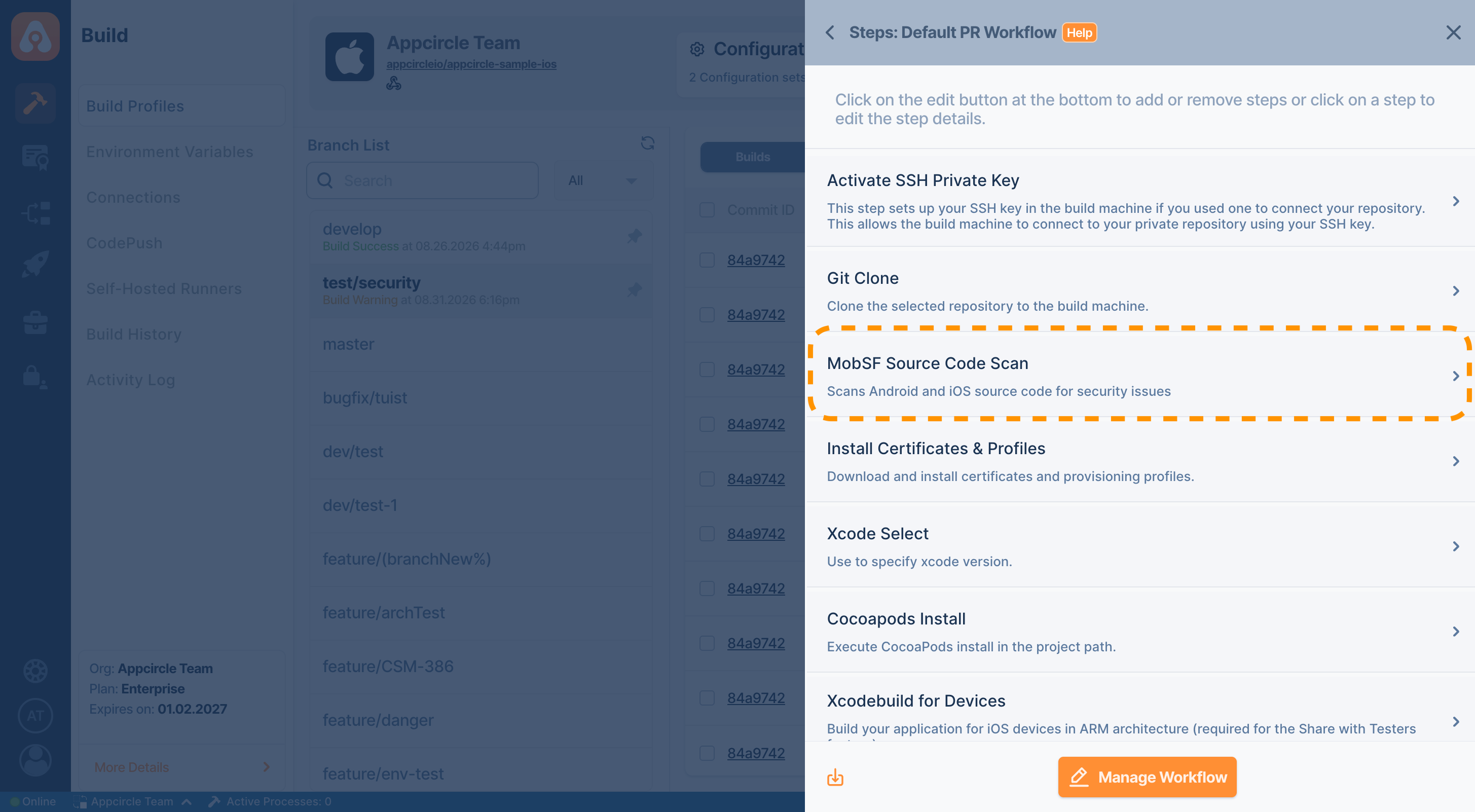
Place the step after Git Clone and before the build steps. The scan reads the source code only, so it does not need a built app.
To keep the reports after the build, add the Export Build Artifacts step after this step.
Input Variables
This step contains some input variable(s). It needs these variable(s) to work. The table below gives explanation for this variable(s).
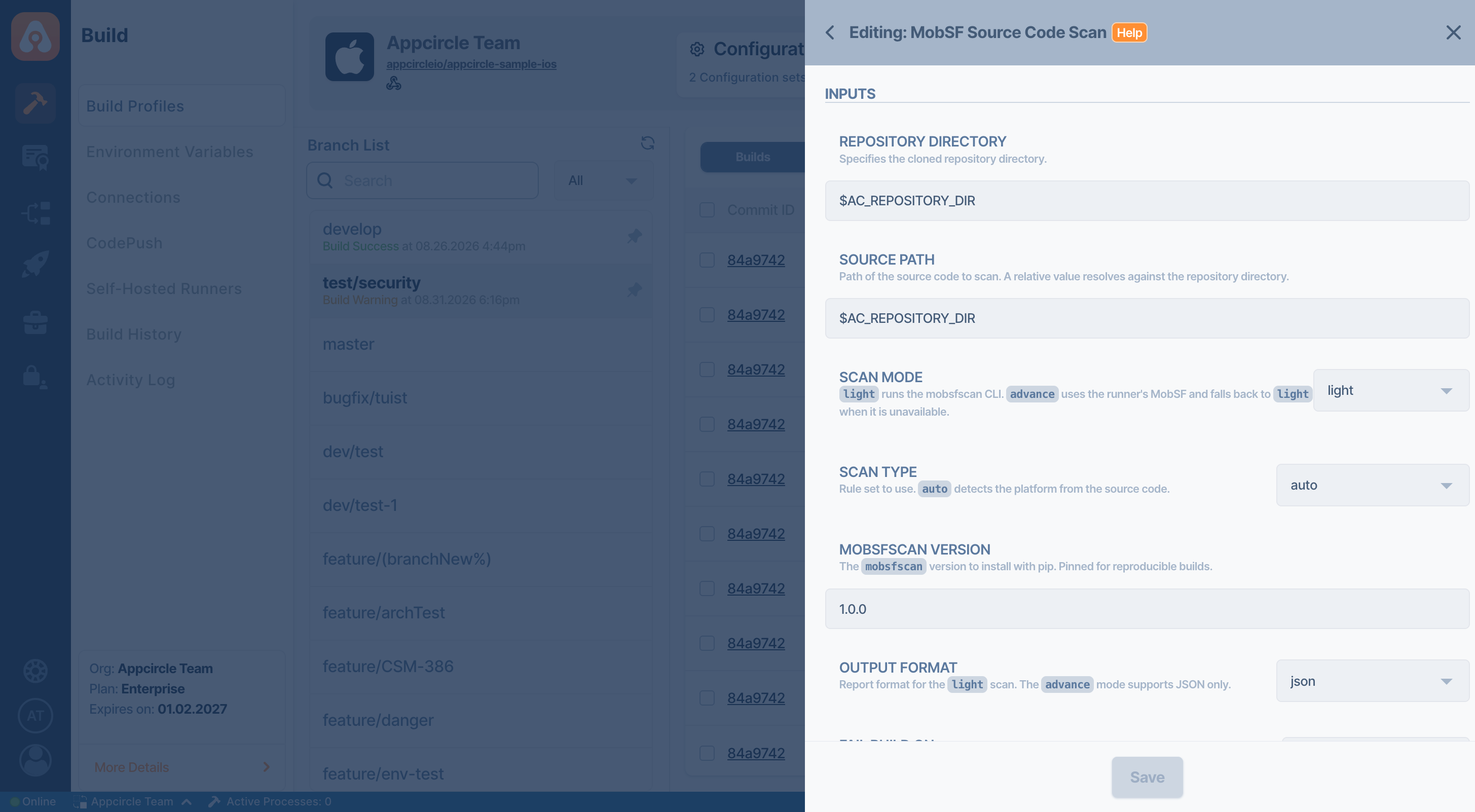
| Variable Name | Description | Status |
|---|---|---|
$AC_REPOSITORY_DIR | Specifies the directory where the repository is cloned. | Required |
$AC_MOBSFSCAN_VERSION | The mobsfscan version to install for the light scan. It is pinned, 1.0.0 by default, so that a build is reproducible. | Required |
$AC_MOBSFSCAN_SCAN_MODE | Selects the scanner. Options: light, advance. Default: light. See Which scan mode should I choose?. | Optional |
$AC_MOBSFSCAN_SOURCE_PATH | Path of the source code to scan. A relative value is resolved against the cloned repository directory. Default: the repository root. | Optional |
$AC_MOBSFSCAN_SCAN_TYPE | Rule set to use. Options: auto, android, ios. With auto, the default, the step detects the platform from the source code. | Optional |
$AC_MOBSFSCAN_OUTPUT_FORMATS | Report format for the light scan. Options: sarif, json, html, sonarqube, gitlab-sast. Default: sarif. See Reports. | Optional |
$AC_MOBSFSCAN_SEVERITY_THRESHOLD | Breaks the pipeline on a finding at the selected level or worse. Options: critical, normal, low, none. Default: critical. | Optional |
$AC_MOBSFSCAN_MIN_SCORE | Breaks the pipeline when the MobSF security score out of 100 falls below this value. Empty, the default, disables the check. Only the advance scan reports a score. | Optional |
$AC_MOBSFSCAN_CONFIG_PATH | Path of the .mobsf configuration file used to tune the rules, for example to suppress a rule or a path. When empty, a .mobsf file at the scan root is used if there is one. | Optional |
$AC_MOBSFSCAN_SAVE_REPORT | Copies the report into the artifacts folder. Options: true, false. Default: true. | Optional |
$AC_MOBSFSCAN_TIMEOUT | Timeout in seconds for a single mobsfscan run. Default: 900. | Optional |
$AC_MOBSFSCAN_ADVANCE_TIMEOUT | Timeout in seconds for the MobSF scan in advance mode. Default: 1800. | Optional |
$AC_MOBSFSCAN_EXTRA_PARAMETERS | Additional mobsfscan parameters, passed to the scanner as separate arguments. | Optional |
Output Variables
The output(s) resulting from the operation of this component are as follows:
| Output Variable | Description |
|---|---|
AC_MOBSFSCAN_SCAN_MODE_USED | The scan that ran, light or advance. It differs from the selected mode when an advance scan fell back to the light scan. |
AC_MOBSFSCAN_SECURITY_SCORE | The MobSF security score out of 100. Only the advance scan reports a score. |
AC_MOBSFSCAN_FINDING_COUNT | Total number of findings. |
AC_MOBSFSCAN_CRITICAL_COUNT | Number of critical findings. |
AC_MOBSFSCAN_NORMAL_COUNT | Number of normal findings. |
AC_MOBSFSCAN_LOW_COUNT | Number of low findings. |
AC_MOBSFSCAN_WORST_LEVEL | The worst level found: critical, normal, low, or none. |
Reports
The report is written into the $AC_OUTPUT_DIR directory under a fixed name, so the Export Build Artifacts step publishes it without extra configuration. The file name depends on the selected output format:
| Output Format | Report File |
|---|---|
sarif | mobsf-source-code-analyze.sarif |
json | mobsf-source-code-analyze.json |
html | mobsf-source-code-analyze.html |
sonarqube | mobsf-source-code-analyze.sonarqube.json |
gitlab-sast | mobsf-source-code-analyze.gitlab-sast.json |
An advance scan publishes mobsf-source-code-analyze.json, because JSON is the only format MobSF reports here.
Reports are published before the build is graded, so the findings stay downloadable even when the step breaks the pipeline.
To access the source code of this component, please use the following link:
FAQ
What is the difference between the MobSF Source Code Scan and MobSF Binary Scan steps?
The MobSF Source Code Scan step analyzes the source code in your repository and reports the file and line of every finding, so it runs before the build and points at code you can fix. The MobSF Binary Scan step analyzes the compiled APK, AAB, or IPA and reports what ships to your users, such as the signing certificate, the requested permissions, and the binary protections. Running both covers the code and the shipped app.
Which scan mode should I choose?
Start with light. It needs python3 on the runner only, installs the scanner at build time, and covers the source code rules. Choose advance when you also want the manifest, certificate, and scored AppSec analysis, and your runner is provisioned with MobSF.
Why did my advance scan run as a light scan?
The advance mode falls back to the light scan instead of failing the build when the runner cannot serve it, and the build log states the reason. Common reasons are a runner without a MobSF installation, an incomplete installation, a source layout MobSF cannot read, and an iOS source archive that MobSF answers without an AppSec section. The AC_MOBSFSCAN_SCAN_MODE_USED output variable records which scan actually ran.
Why does the Minimum Security Score input variable change nothing?
Only the advance scan reports a MobSF security score. On a light scan there is no score to compare against, so the score gate is skipped and the summary in the build log notes it. To use the score gate, set Scan Mode to advance.
How do I suppress a rule or a false positive?
Add a .mobsf configuration file to your repository, where you can suppress findings by rule identifier or by path. The step uses a .mobsf file at the scan root automatically, and the Config File Path input variable points it at a file kept elsewhere.
The scan reported no findings. Is my project clean?
Check the build log first. When semgrep, which mobsfscan runs the source code rules with, is missing from the installation, only the best practice rules run and the result can look clean. The step detects this and fails with an explanation instead of reporting a clean scan, so a summary with counts and a verdict is a real result.